
Self-hosting your own SFX converter
This guide will show you how to self-host an SFX converter for your GDPS using either MegaSa1nt’s original JavaScript implementation or M336’s C# rewrite!
Requirements
Section titled “Requirements”To be able to follow the rest of this guide, you will need to make sure that:
- You have a GDPS using MegaSa1nt’s GMDprivateServer fork
- You have a device/server capable of running 24/7
- You have a domain name managed through Cloudflare
- You have a stable internet connection
Setting up the converter
Section titled “Setting up the converter”Setting up MegaSa1nt’s converter
Section titled “Setting up MegaSa1nt’s converter”- Download Node.js, preferably a recent LTS version.
- Download the repository onto a device or server that can run 24/7, or clone it using the following command:
git clone https://github.com/MegaSa1nt/GDPS-ConvertSFX.git. - Then, in its (decompressed) folder, install the dependencies by running
npm install, then feel free to configureconfig.jsonaccording to your needs. - Finally, start the converter by running
node .from within the repository folder!
Setting up M336’s converter
Section titled “Setting up M336’s converter”- Download the appropriate precompiled binary for your system from the latest releases.
- Then, in its (decompressed) folder, feel free to fill out a
.envfile according to your needs (check out .env.example for an example). - Finally, start the converter by running the binary from within the extracted folder (on Linux, you may need to make it executable first using
chmod +x <binary_name>).
Making your converter accessible over the internet with Cloudflare Tunnel
Section titled “Making your converter accessible over the internet with Cloudflare Tunnel”To let people use your converter from your GDPS dashboard, you’ll need to make it accessible over the internet.
-
Open the Cloudflare dashboard, navigate to Networking > Tunnels, and click Create Tunnel.
-
Give your tunnel a name, then follow the instructions to install
cloudflaredas a service on your server.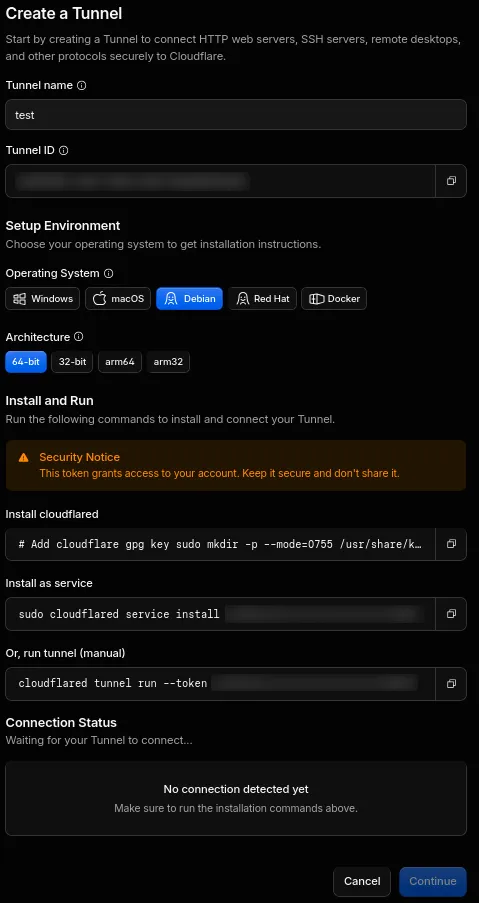
-
Once the tunnel is set up, open it, navigate to Routes, click Add route, and select Published application. Configure the route to point to the converter URL you want. Then, if you haven’t changed the converter’s port, use
http://localhost:24157as the service URL.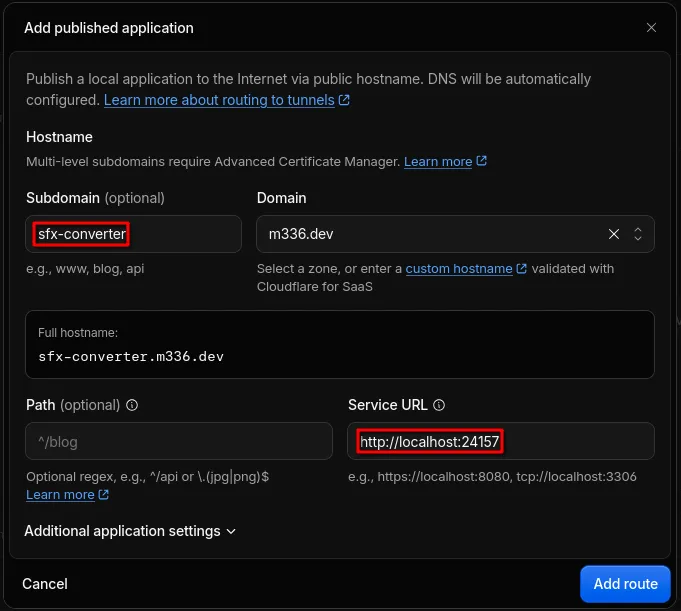
-
That’s it! Your converter should now be accessible over the internet.
Using your converter on your GDPS
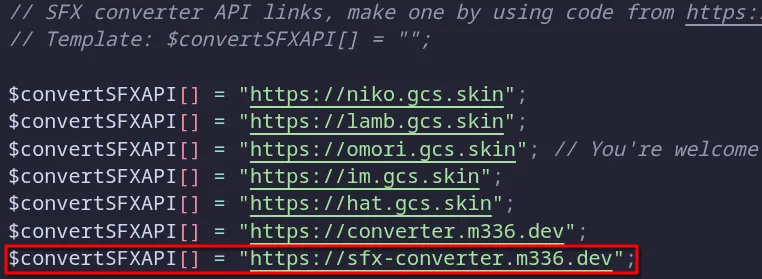
Section titled “Using your converter on your GDPS”Now, open config/dashboard.php in your GDPS installation.
Here, you can choose to:
-
Use only your own converter by removing the other converters from the configuration.

-
Keep the existing converters and add your own so that all of them can be used.
Last updated: October 24th, 2026