
Running a 24/7 Discord Radio Bot
If you don’t know what a radio bot is, it’s basically a Discord bot that plays music 24/7 in a channel you’ve set. This guide will explain to you how to run one that’ll play random songs used on your GDPS!
Requirements
Section titled “Requirements”To be able to follow the rest of this guide, you will need to make sure that:
- You have Bun installed
- You have a device/server capable of running 24/7
- You have full access to your GDPS’ SFTP & Discord server (with administrator permissions to add the bot)
- You have a stable internet connection
Creating the bot
Section titled “Creating the bot”Create a Discord application and then a Discord bot from the Discord Developer Portal, then:
- Copy the bot’s token (you will need it for the
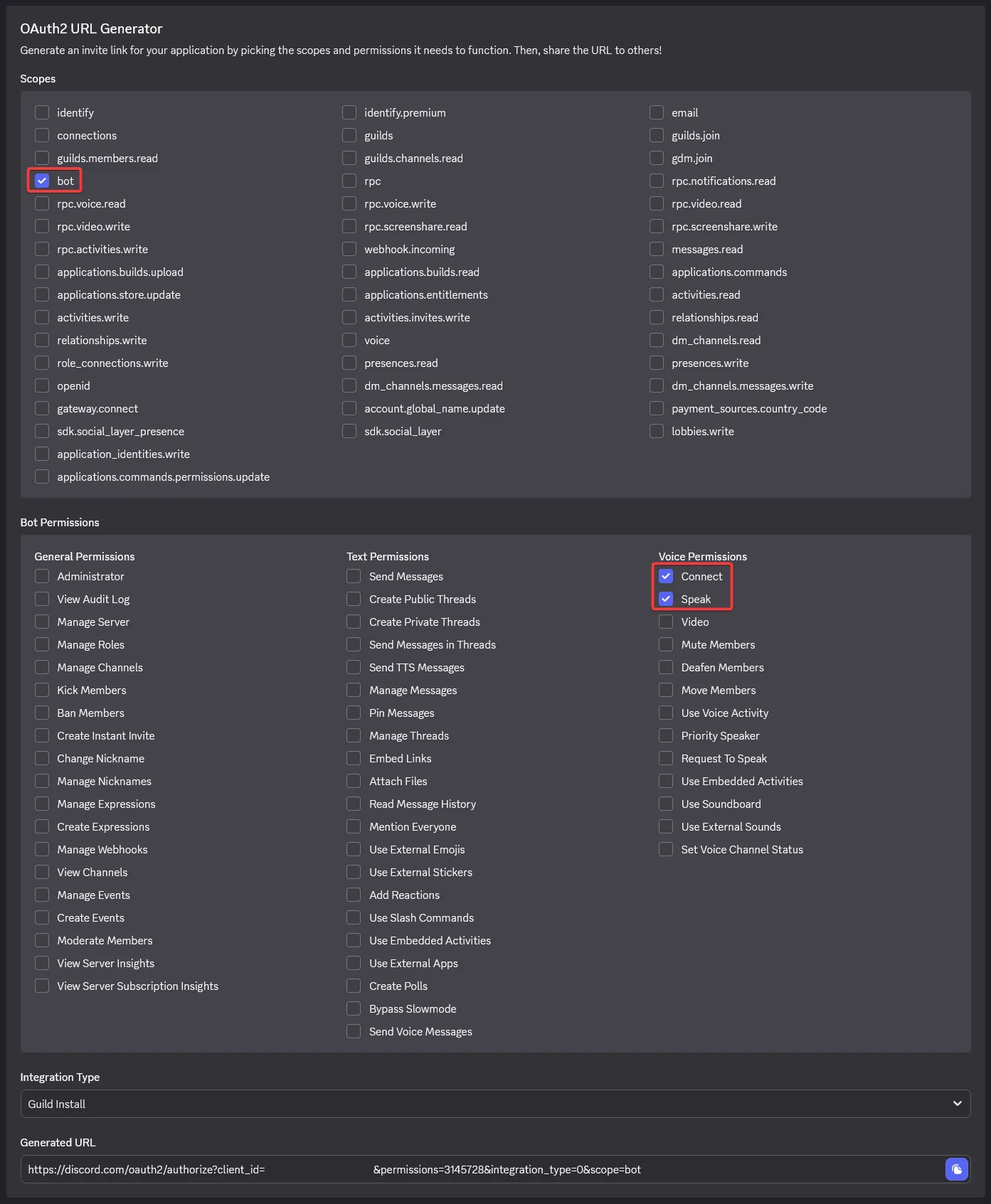
.envfile) - Under the OAuth2 URL Generator select
botthen theConnect&Speakpermissions - Generate the invite link and add the bot to your server
Adding the bot’s endpoint
Section titled “Adding the bot’s endpoint”Add a randomSong.php file anywhere on your GDPS’ SFTP (make sure to replace the require "path/to/incl/lib/connection.php"; line with the correct path on your server):
<?phpheader("Content-Type: application/json");header("Access-Control-Allow-Origin: *");header("Access-Control-Allow-Methods: GET");
require "path/to/incl/lib/connection.php"; // Edit the path on this line!
$song = $db->prepare("SELECT * FROM songs WHERE isDisabled = 0 AND download != 'CUSTOMURL' ORDER BY RAND() ASC LIMIT 1");$song->execute();$song = $song->fetch();
$data = [    "ID" => $song["ID"],    "author" => $song["authorName"],    "name" => $song["name"],    "download" => $song["download"],    "reuploadID" => $song["reuploadID"],    "reuploadTime" => $song["reuploadTime"]];
exit(json_encode([ "dashboard" => true, "success" => true, "song" => $data]));?>Example: https://m336test.ps.fhgdps.com/randomSong.php (with require "incl/lib/connection.php";)
Downloading & starting the bot
Section titled “Downloading & starting the bot”- Download the repository on a device/server that can run 24/7 or clone it with:
git clone https://github.com/M336G/gdps-radio-bot.git - Then, in its (decompressed) folder, install dependencies with
bun installand fill out a.envfile according to your needs (check out .env.example for an example) - Finally, start the bot with
bun run start!
Disallowing people from inviting the bot
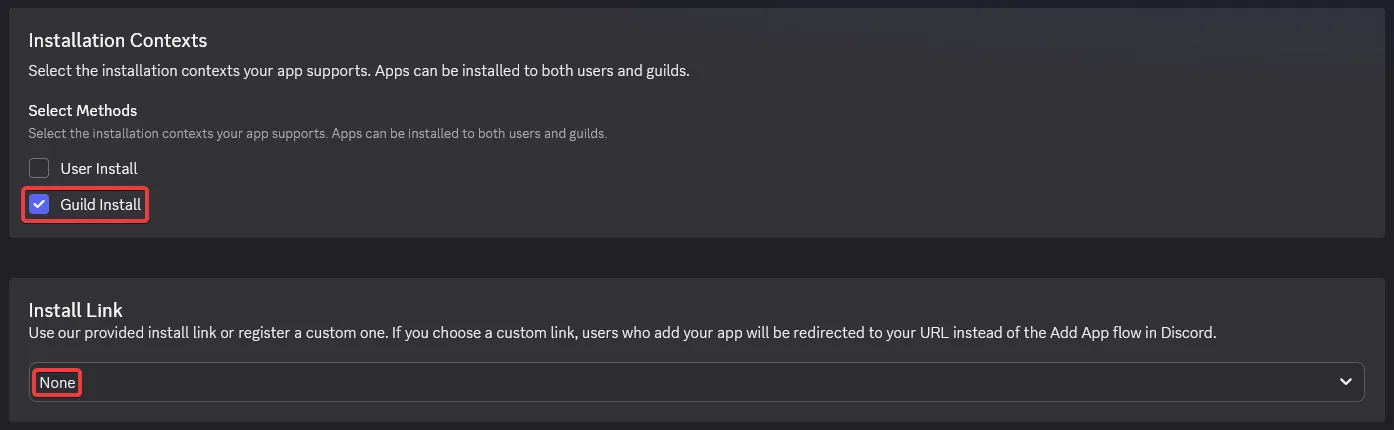
Section titled “Disallowing people from inviting the bot”On the Discord Developer portal, set:
- Installation Context to
Guild Installonly (in the Installation category) - Install Link to
None(in the Installation category too) - Public Bot to
false(in the Bot category)

Last updated: October 24th, 2026